Want the reading on your existing monitor or scale to appear in Apple Health? Health Scan Express can help you capture a supported display, check the extracted values and save the reading with the relevant Health write permission enabled. No Bluetooth connection to the measuring device is required.
The device takes the measurement. The camera reads its visible result. This guide covers recording and permissions, not advice on what your numbers mean or how often to measure.
Before your first scan
Have your iPhone, the app and a supported digital display ready. Use your monitor or scale according to its instructions. Keep an internet connection available for camera recognition, which can send the display image to third-party AI services. Avoid including names, paperwork or other personal details in the frame.
There are two free camera scans in total for new users, not two for every device. Continued scanning needs a subscription. Manual entry and Apple Health integration are free. If you want to set up and test permissions without using a scan, record a real result manually instead.
1. Allow the types you want to save
In Health Scan Express, open Settings, find Health App Integration, then tap Request HealthKit Access. In the permission sheet, allow writing for the categories you want to record. The app supports blood pressure, heart rate and weight. You choose which categories to allow.
Use Manage Health App Permissions to review access. You can also open Apple’s Health app, tap your profile, open Apps under Privacy, and select Health Scan Express. Apple’s Health data guide explains this access route. Labels can vary with your iOS version.
Health Scan Express writes supported saved readings to Health. It does not import your existing Apple Health history into the app. A permission summary is not proof that a particular entry has arrived, so check the saved result too.
2. Capture a clear device display
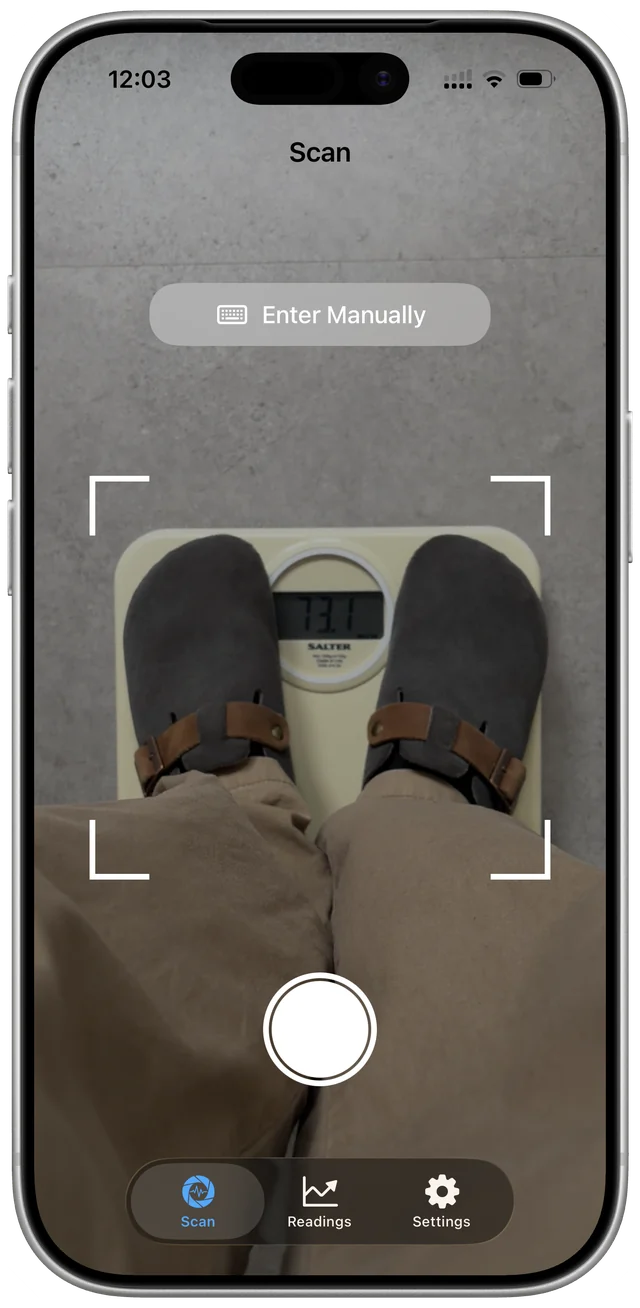
Open Scan and allow camera access when prompted. Photograph the result after the monitor or scale has finished measuring. Keep all relevant digits visible, with enough light to read them and without glare across the display.
For blood pressure, capture systolic and diastolic values plus pulse when shown. For weight, capture the weight value and check whether the scale shows kilograms or pounds. Do not assume a body-composition scale’s other displayed metrics belong in a weight entry.
3. Compare before you save
On Confirm Reading, check every recognized number against the device. For weight, check the unit and decimal point. Check the date and time, especially if the result came from device memory rather than a new measurement.
Correct mismatches before tapping Save. If the display cannot be read confidently, use the manual entry option in Scan or Try Manual Entry when offered. Enter only a result you can verify. Recognition is a typing aid, not a guarantee of accuracy.
4. Check both saved records
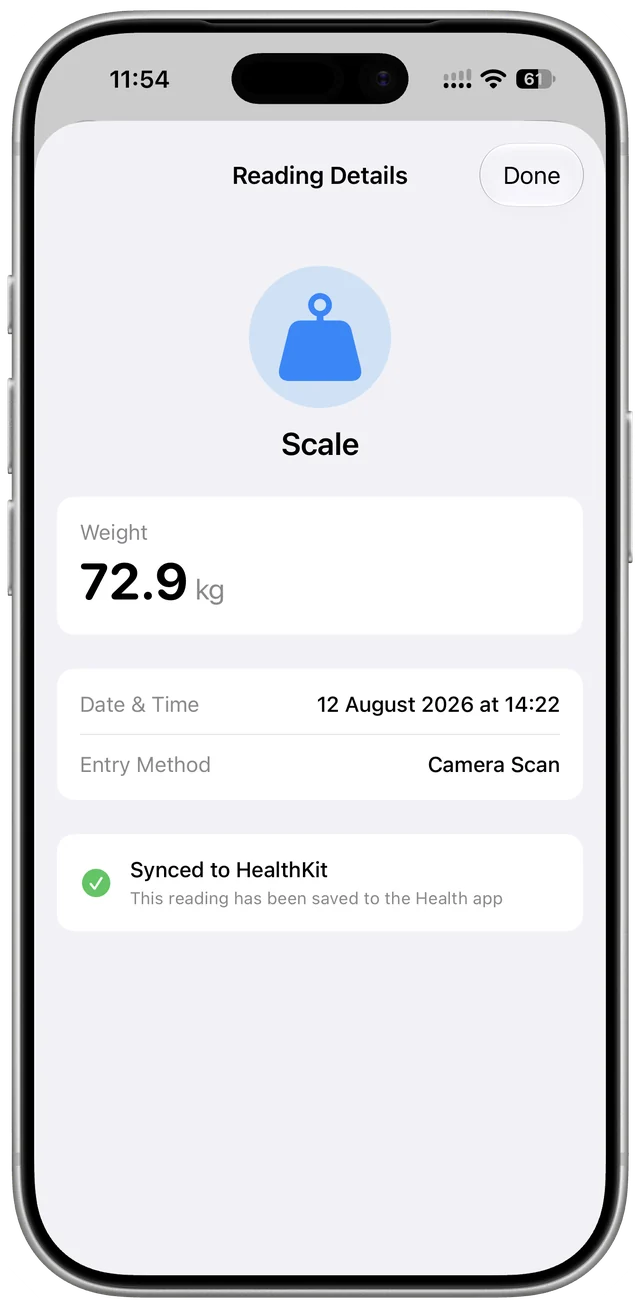
Open Readings in Health Scan Express and select the saved entry. Check its values and Health sync status. Keeping an entry in the app and writing it to Health are separate steps; a permission or sync failure can leave the in-app record available without a Health copy.
In Apple’s Health app, use Browse, then Heart, then Blood Pressure to check BP readings. Weight is under Body Measurements, then Weight. Open the category’s Show All Data view to inspect the individual entry and its time. Pulse is recorded as heart rate when supported and permitted, in the Heart category.
Apple’s blood pressure logging guide documents the BP category and manual logging route. Saving a reading from another app does not mean you have enrolled in Apple’s separate Blood Pressure Log programme.
If the reading is missing from Apple Health
First check that it exists in Health Scan Express. If it does, check the saved entry’s sync status and the write permission for that specific category. Weight permission cannot authorize blood pressure, and a general authorization status may not describe every category.
Look in the correct Health category and date. Open Show All Data rather than relying only on the chart. Apple’s Health data guide also explains Data Sources & Access, where you can inspect which apps contribute to a category.
Do not repeatedly save the same measurement while troubleshooting. Check whether it has already arrived before creating another entry. If it remains missing, contact support with the app/iOS versions and the error or sync status. You do not need to send your actual health values for an initial permission question.
Manual entry is a useful fallback
You can enter a verified device result manually in Health Scan Express without a scanning subscription, then check the saved entry and Health permission as above.
You can also log blood pressure directly in Apple’s Health app. Open Browse, Heart, Blood Pressure, then Add a Measurement. Enter the date, time, systolic and diastolic values, then add the entry. Apple’s current instructions cover this route. Choose one recording route per measurement so you do not create duplicates.
For the general manual-data workflow, Apple documents opening the relevant Health category and using its add-data control in the Health data guide.
Choose what you keep and share
Apple Health access is optional. You can keep your records in Health Scan Express and use its PDF export without enabling Health. For a combined recording routine, see keeping BP and weight records in one app.
Health Scan Express does not diagnose a condition, interpret results or recommend treatment. Follow your existing healthcare advice for measurement and interpretation.
New users can try two free camera scans in total. Continued camera recognition requires a subscription. Manual entry, history, charts, Apple Health integration and PDF export remain free. Check current subscription terms in the app. Camera scanning requires internet access and can send display images to third-party AI services. See the privacy policy before scanning.